
- 这里我们先要认识一下鸿蒙开发相关的单位
- 这样方便我们后期对布局的书写
- 注意 : 鸿蒙应用开发提供了四种像素单位, 框架采用 vp 为基准数据单位
| 名称 | 描述 |
| px | 屏幕物理像素单位。 |
| vp | 屏幕密度相关像素,根据屏幕像素密度转换为屏幕物理像素 注意 : 当数值不带单位时,默认单位vp。 在实际宽度为 1440 物理像素的屏幕上,1vp 约等于 3px。 |
| fp | 字体像素,与 vp 类似适用屏幕密度变化,随系统字体大小设置变化。 |
| lpx | 视窗逻辑像素单位,lpx单位为实际屏幕宽度与逻辑宽度(通过designWidth配置)的比值,designWidth 默认值为 720。当 designWidth 为 720 时,在实际宽度为1440 物理像素的屏幕上,1lpx 为 2px 大小。 |
示例 1 - 默认单位展示
- @Entry
- @Component
- struct Index {
- build() {
- Column() {
- Text('我是一段文本')
- .width(220)
- .height(40)
- .backgroundColor(Color.Orange)
- Text('我是一段文本')
- .width('220vp')
- .height(40)
- .backgroundColor(Color.Pink)
- }
- }
- }

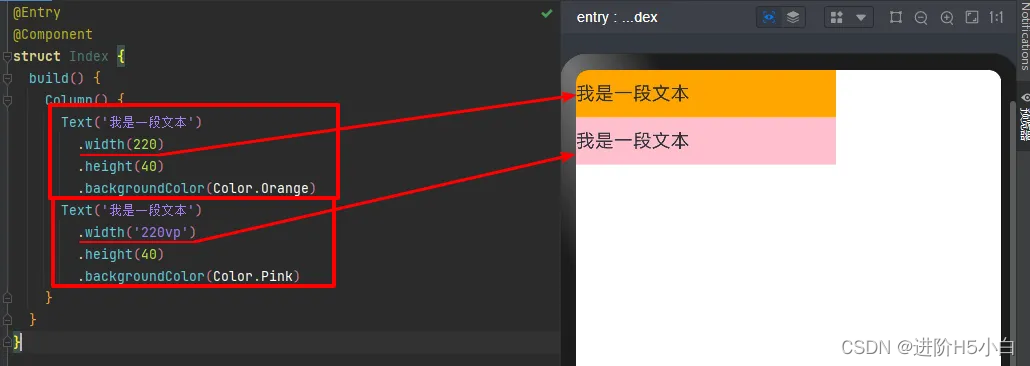
不写单位的时候, 默认使用的单位是 vp
示例 2 - 单位对比展示
- @Entry
- @Component
- struct Index {
- build() {
- Flex({ direction: FlexDirection.Column }) {
- Text('单位是 vp')
- .width(220)
- .height(40)
- .backgroundColor(Color.Orange)
- Text('单位是 px')
- .width('220px')
- .height(40)
- .backgroundColor(Color.Pink)
- Text('单位是 fp')
- .width('220fp')
- .height(40)
- .backgroundColor(Color.Gray)
- Text('单位是 lpx')
- .width('220lpx')
- .height(40)
- .backgroundColor(Color.Brown)
- }
- }
- }
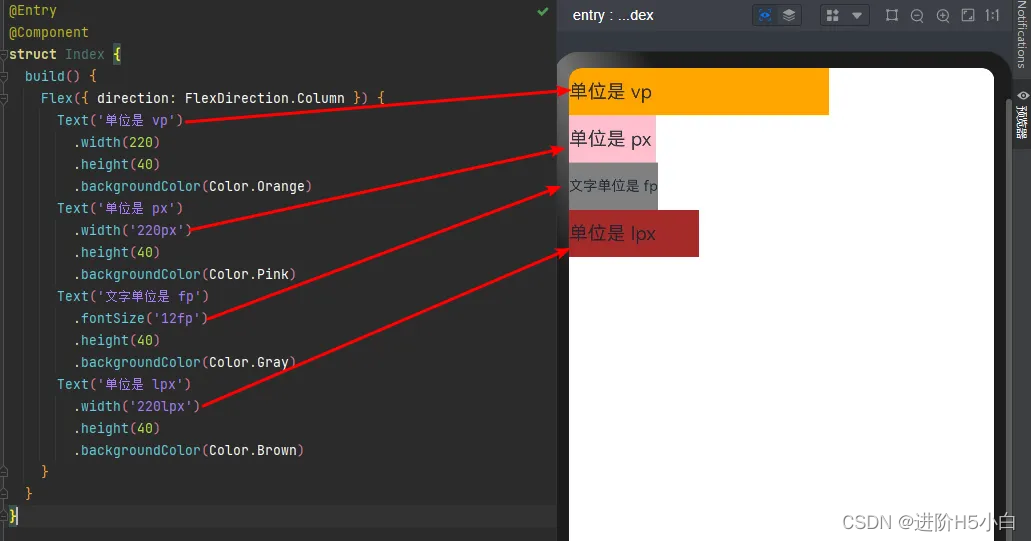
PX 单位转换
- 对于前端开发者来说, 你可能更习惯 px 作为单位
- 或者有的时候, 你可能需要用到 px 为单位
- 或者有的时候, 你不得不需要用到 px 作为单位
- 那么如果我们自己换算的话, 会比较麻烦
- 鸿蒙应用开发内置也帮我们提供了一些转换函数
| 接口 | 描述 |
| vp2px(value : number) : number | 将vp单位的数值转换为以px为单位的数值。 |
| px2vp(value : number) : number | 将px单位的数值转换为以vp为单位的数值。 |
| fp2px(value : number) : number | 将fp单位的数值转换为以px为单位的数值。 |
| px2fp(value : number) : number | 将px单位的数值转换为以fp为单位的数值。 |
| lpx2px(value : number) : number | 将lpx单位的数值转换为以px为单位的数值。 |
| px2lpx(value : number) : number | 将px单位的数值转换为以lpx为单位的数值。 |
示例 3 - 单位转换
- @Entry
- @Component
- struct Index {
- build() {
- Flex({ direction: FlexDirection.Column }) {
- Text('文字单位是 fp')
- .fontSize('12fp')
- .height(40)
- .backgroundColor(Color.Pink)
- Text('12px 转换为 fp')
- .fontSize(px2fp(12))
- .height(40)
- .backgroundColor(Color.Gray)
- }
- }
- }
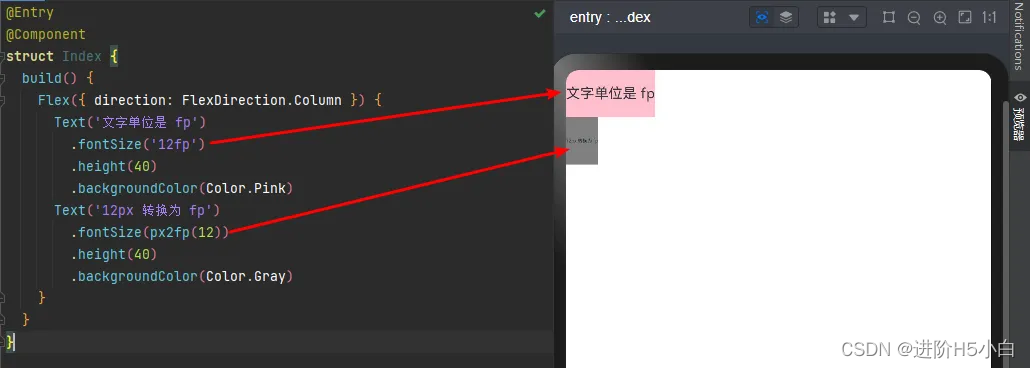
文字转换比较明显, 其他转换也是一个意思
注意 : 12px 不是 12fp, 大概是 三分之一 大小
评论记录:
回复评论: